
How to convert TIFF to PDF
tiff2pdf.com turns TIFF images into PDF pages. TIFF is common for scanned documents, faxes, and archival photos — often with multiple pages packed into one file. tiff2pdf reads single-page and multi-page TIFFs alike and produces a standard PDF that opens anywhere.
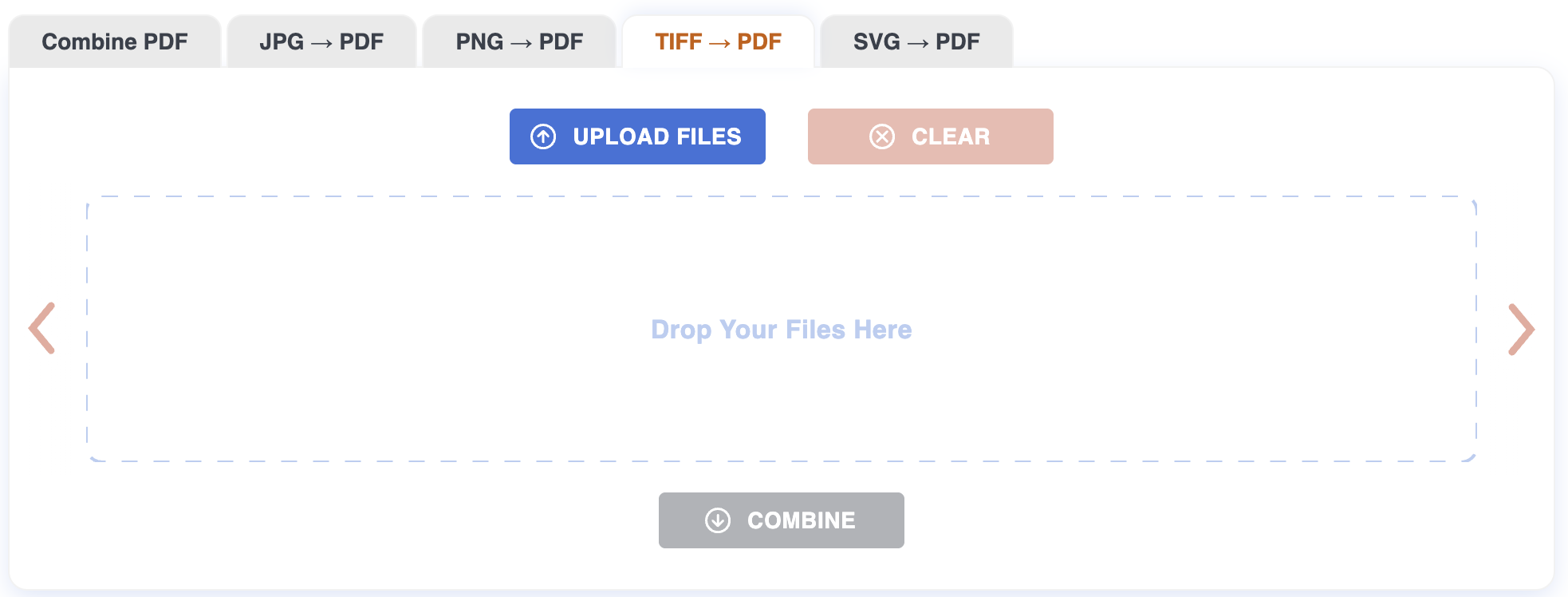
Step 1: Upload
Drag the TIFFs onto the page, or click to pick them. Up to 20 files at once, 200 MB each. Both .tif and .tiff extensions work. Conversion starts as soon as the upload finishes.
Step 2: Arrange
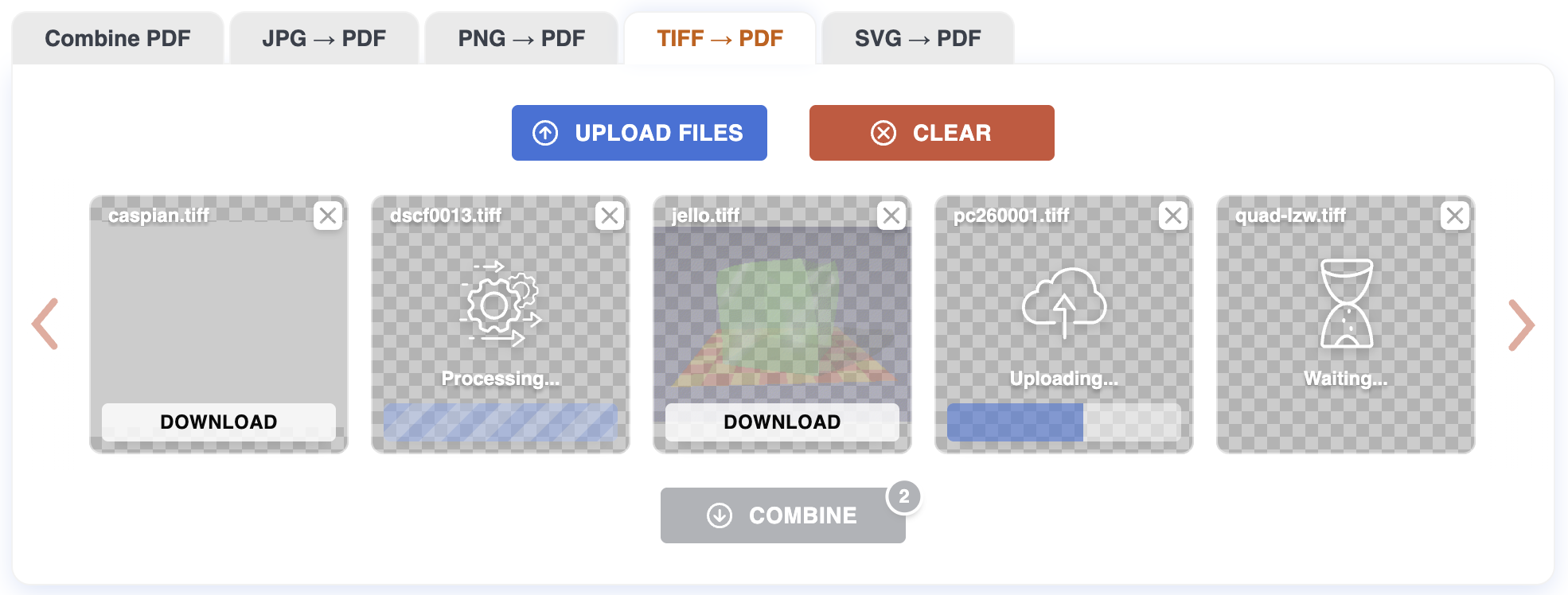
Each TIFF appears as a tile. Multi-page TIFFs become multi-page PDFs — all pages stay together inside one tile. Drag tiles to set the order; the first tile's pages come first in the combined PDF.
Step 3: Download
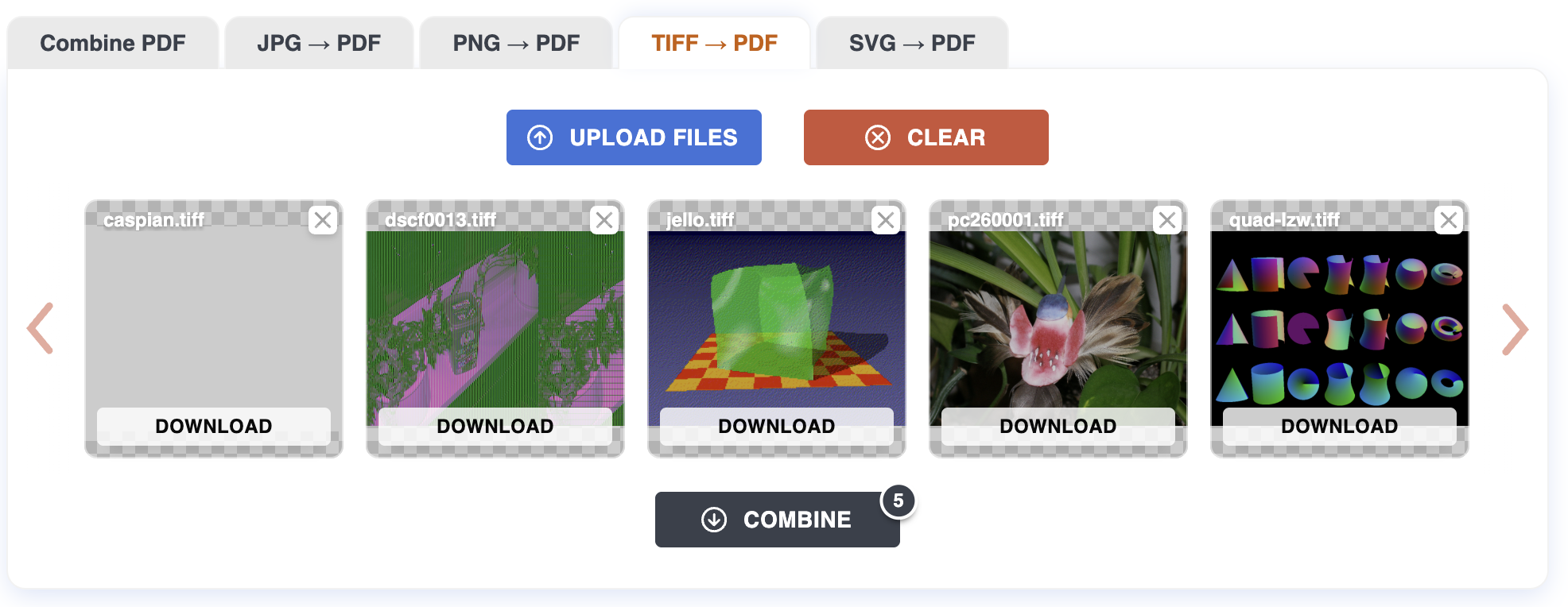
Click Download all for a single PDF containing every TIFF page in order. Per-file downloads give each TIFF as its own PDF (with multiple pages if the source had them).
Tips
- Multi-page TIFFs are kept intact. A 50-page scanned TIFF becomes a 50-page PDF in the same order — no manual splitting needed.
- Bitonal scans stay small. Black-and-white fax-style TIFFs (CCITT G4) keep their compact size in the PDF; the result is often smaller than re-scanning to PDF directly.
- Color and grayscale work. 8-bit RGB, 16-bit grayscale, CMYK — all read correctly. Output is sRGB.
- One TIFF per page. If you upload single-page TIFFs, each becomes one page; combined into the final PDF in the order you set.
What can be tricky
LZW vs. JPEG-in-TIFF. Both decompress fine, but JPEG-compressed TIFF tiles can show subtle JPEG artifacts — that's a property of the original, not the conversion.
Very high-resolution scans. 600 DPI archival TIFFs can be hundreds of megabytes. They convert correctly but take longer to upload and process.
Exotic encodings. A few obscure TIFF compression types (Old JPEG, some custom Pixar variants) may fail. Re-save as standard LZW or Deflate first.
What won't work
Files over 200 MB. Reduce DPI or split the TIFF into smaller chunks.
Tiled tagged TIFFs from GIS tools. These often need specialized readers — flatten to a regular TIFF first.
Corrupt or truncated files. If the TIFF won't open in a viewer, it won't convert here.
Privacy
Files are uploaded over HTTPS and processed on our server. Both the originals and the resulting PDF are deleted automatically after one hour. No account required.
For more on how TIFF-to-PDF conversion works, see the Blog.